
Before you start
Mobile scanners are included in paid plans and free trials, with the number of scanners depending on your plan. Make sure you have an active subscription or trial before adding one.
Add a mobile scanner
Click 'Collect', then select 'Mobile Scanners'.
Tap the green '➕ Add mobile scanner' button. Enter your WhatsApp number (with country code). Click Add.
You'll receive a welcome message via WhatsApp within a few minutes. Save the Receiptor AI bot as a contact on your phone for easy access.
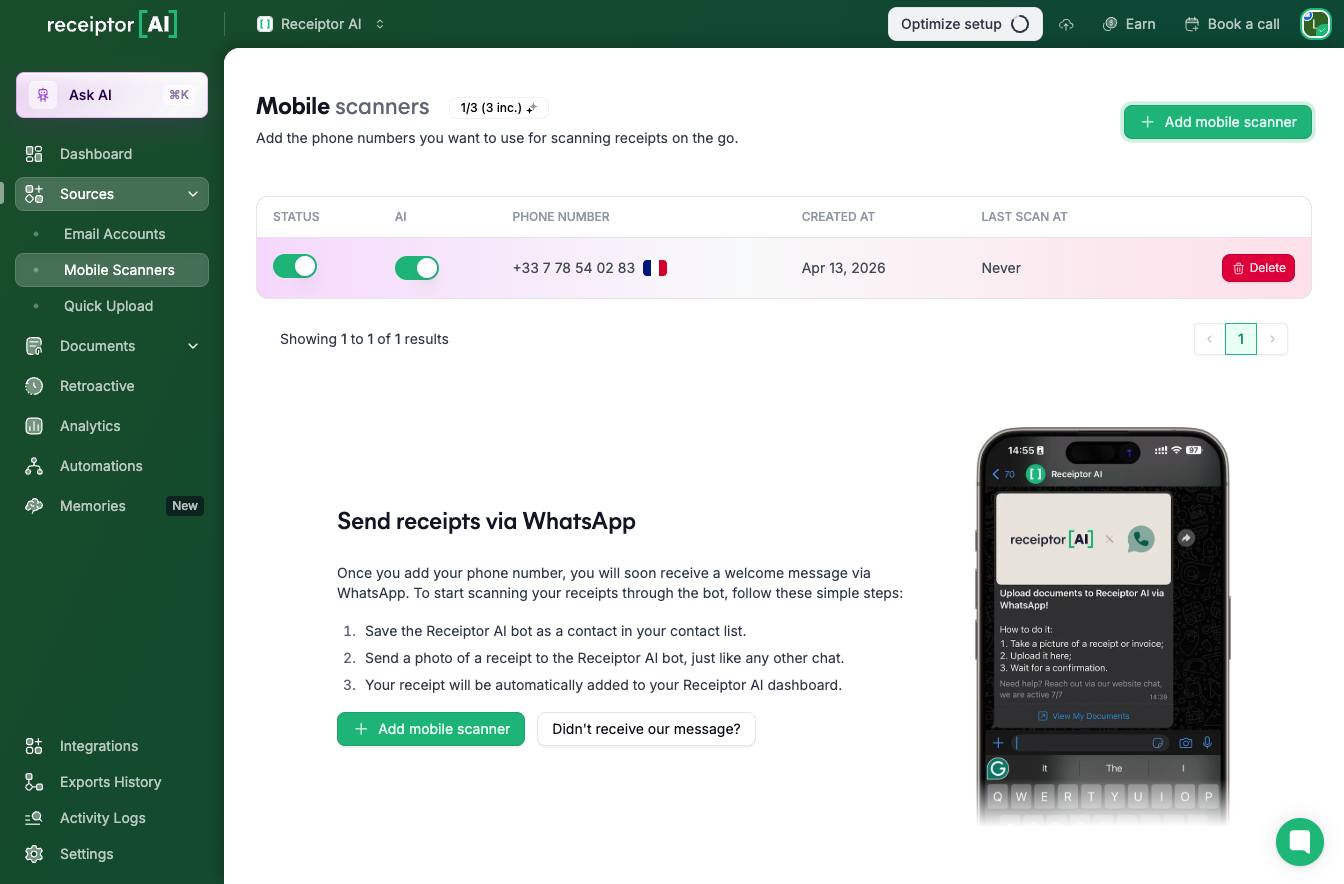
Send Documents via WhatsApp
Once your number is connected, you can send documents in three ways directly from WhatsApp:
Take a photo: open the chat with the Receiptor AI contact, tap the camera icon, and photograph the receipt or invoice.
Send from your gallery: attach an existing image from your device.
Forward a document: forward any photo, image, or PDF from another conversation directly to the Receiptor AI contact.
Documents are processed automatically within a few minutes. If the image is too blurry, incomplete, or not a recognized financial document, the bot will let you know and ask you to resend.
Enable or disable a scanner
Each connected number has a toggle in the Mobile Scanners list. Switch it off to pause processing for that number without removing it. Switch it back on at any time to resume.
Enable Ask AI
Ask AI lets you ask questions about your documents directly in WhatsApp. To turn it on, go to Collect and select Mobile Scanners. Find the number you want to enable, then toggle on Ask AI.
Once enabled, you can type questions in the WhatsApp chat, and the AI will answer based on your documents and workspace data.
Common questions
Q: Which file types does the bot accept?
A: Photos (JPG, PNG) and PDFs. For best results, make sure the document is well-lit, fully in frame, and not obscured.
Q: How many numbers can I connect?
A: The number of mobile scanners available depends on your plan. You can check your current limit in Collect under Mobile Scanners.
Q: Can the same number be used on multiple workspaces?
A: No. Each WhatsApp number can only be connected to one workspace at a time.
Q: The bot says the image is not a valid document. What should I do?
A: Retake the photo with better lighting and make sure the full document is visible. If the issue persists, try sending it as a PDF instead.
Q: Where do the extracted documents go?
A: All documents processed via WhatsApp appear in your Documents section, with the source listed as Phone, so you can filter by it.
Support
If you need help with connecting your mobile scanner or sending documents, contact our support team at [email protected] or via the in-app chat.