
How to Bulk Upload
You have two easy options for uploading your receipts and invoices:
Drag and Drop: Simply drag one or more images or PDF files (up to 10MB per upload) from your computer and drop them anywhere in the platform.
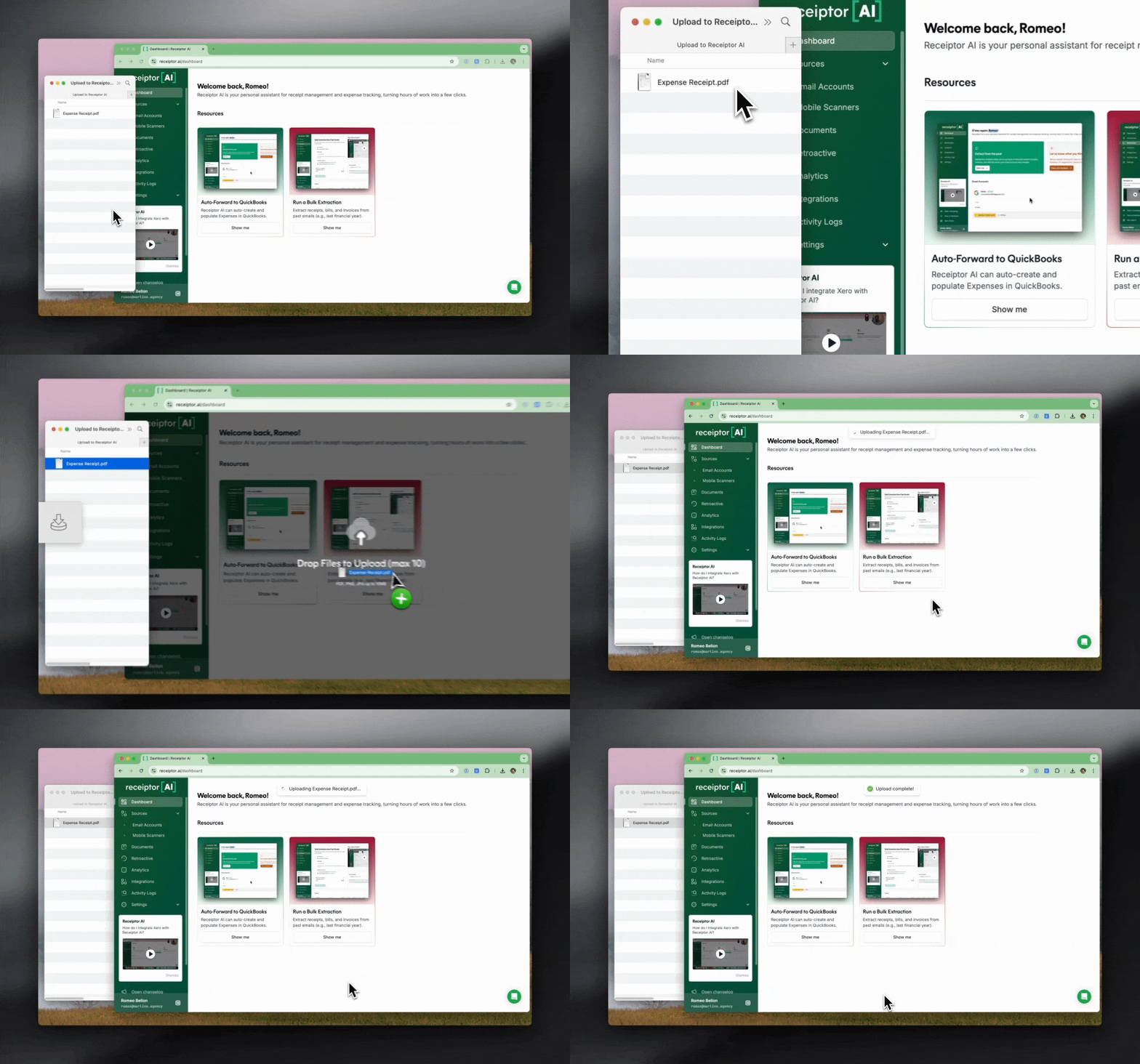
Quick Upload: Go to 'Collect' → 'Quick Upload' and select your files manually from your device (PDF and images up to 10MB).
Upload Status
You can see the recently uploaded document by clicking on the “Uploads” icon at the top.
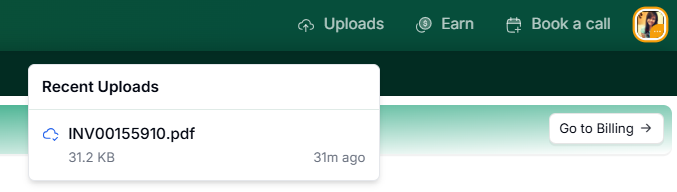
Once completed, you'll see them appearing in your Documents section.
Common questions
Q: How do I see the full history of my uploads?
A: Click the Uploads icon at the top to see recent uploads. For the full history, it links through to Activity Logs filtered by upload type, where you can see the status of every file you've uploaded and what happened to each one.
Q: A document I uploaded is not appearing in my Documents section. Why?
A: Open Activity Logs and filter by upload to find the file. It will show whether the document was processed, skipped, or flagged, and the reason why. The most common reason is that the file was not recognized as a financial document (receipt, invoice, credit note, or order confirmation).
Q: Can I upload bank or credit card statements?
A: You can upload statements as PDFs, but Receiptor AI is optimized for extracting individual receipts and invoices. Statements usually contain a list of transactions (merchant + amount + date), and often do not include the full receipt details (tax/VAT, line items, address). Because of that, statement extraction may be incomplete. If you have the original receipts and invoices, you will get the best results by uploading those instead, or by connecting the email inbox where you receive them.
Support
If you need help uploading documents, contact our support team at [email protected].