Retroactive Extraction allows users to automatically retrieve financial documents from their past emails. This functionality is handy for businesses and individuals who need to catch up on their bookkeeping or prepare for tax season by retrieving historical financial data.
On your first workspace, Receiptor AI offers a free retroactive extraction from the last month. You'll see the offer in the Recent extractions panel on the right when you first open the Retroactive section.
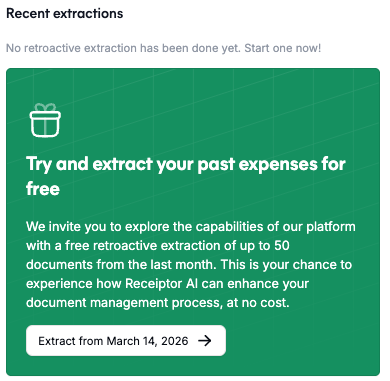
Click Extract from [date] to run it instantly, with no quote or payment required.
To scan a custom date range or a larger volume of emails, start by requesting a quote. Prices are calculated based on the number of emails in scope, not the number of documents extracted.
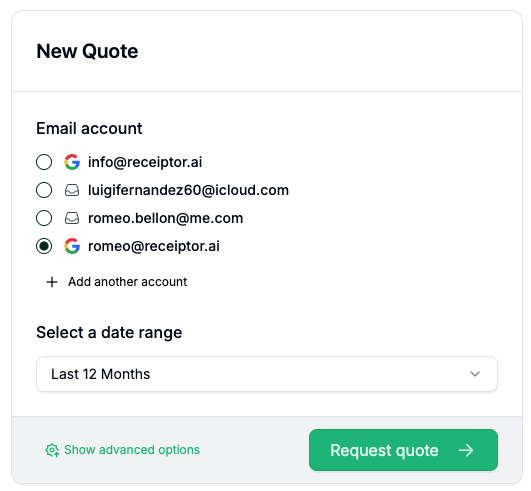
Go to Retroactive in the left sidebar. On the left panel, fill in:
Select the email account to scan.
Set the date range for the extraction.
Click Request quote.
Quotes are generated in a few seconds to a few minutes, depending on the volume of emails in scope.
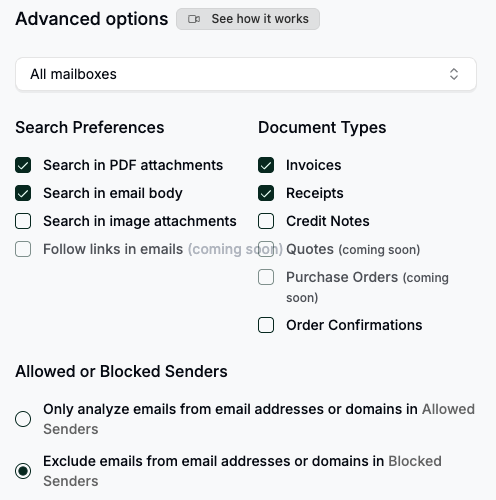
Click Show advanced options before requesting a quote to refine what gets scanned:
Search preferences: choose which parts of emails to analyze: PDF attachments, image attachments, and email body.
Document types: limit extraction to specific types: Invoices, Receipts, Credit Notes, Order Confirmations.
Sender filters: restrict to allowed senders only, or exclude blocked senders.
This is particularly helpful if you want to optimize the cost of your retroactive extraction!
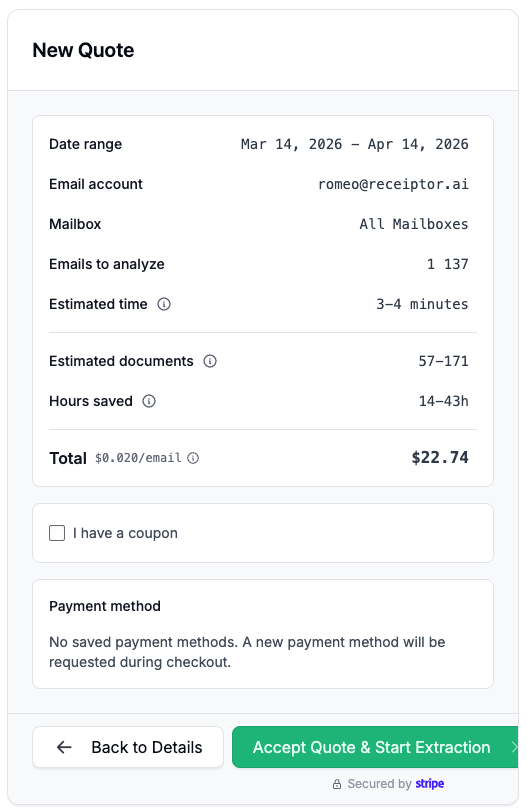
After requesting the quote, you’ll get a summary of the number of emails identified for this date range (those the AI has to go through), the estimated time & documents to be found (based on benchmark, not your specific case), and the price.
Click on ‘Accept Quote & Start Extraction’ to be redirected to check out and launch the extraction.
Once your extraction has started, you can track its status and the number of documents found under ‘Recent extractions’.
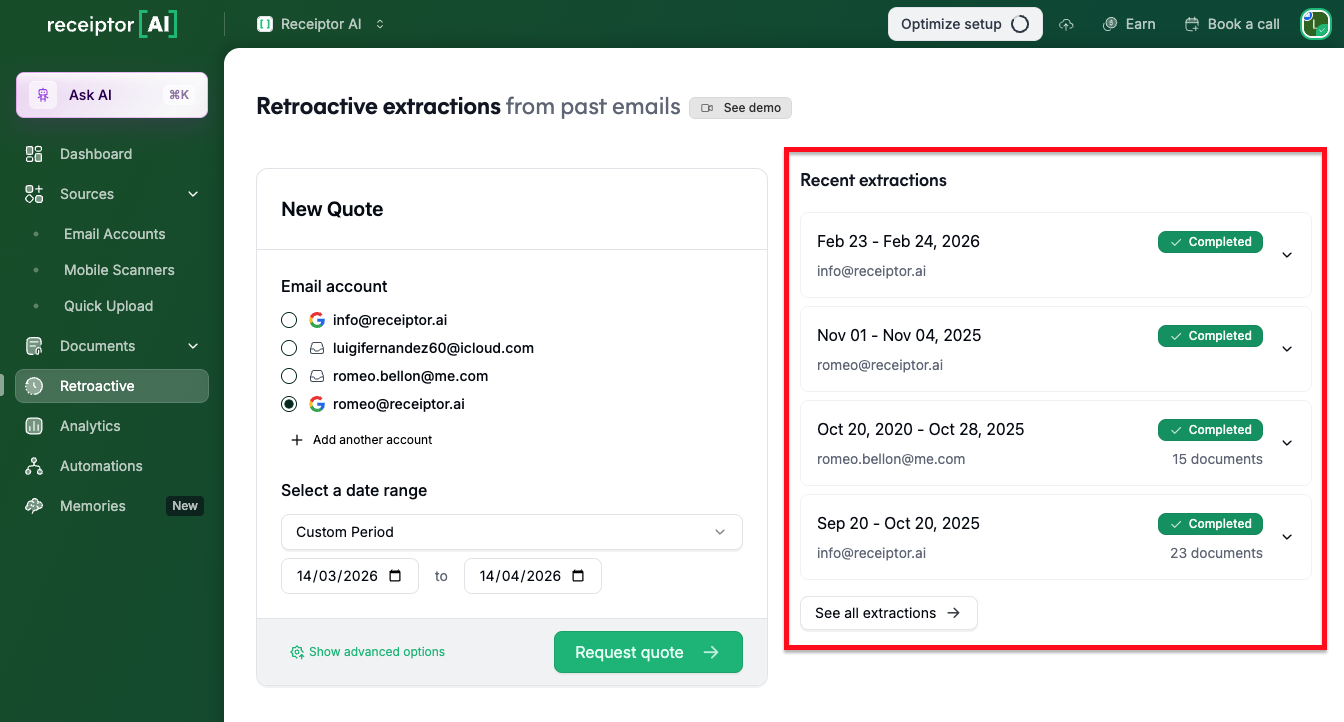
Click the dropdown arrow on any extraction to see the full details: the search preferences used, how many emails were analyzed, and how many documents were extracted.
Click the document count in any completed extraction to jump directly to your Documents section filtered to show only the documents from that extraction.
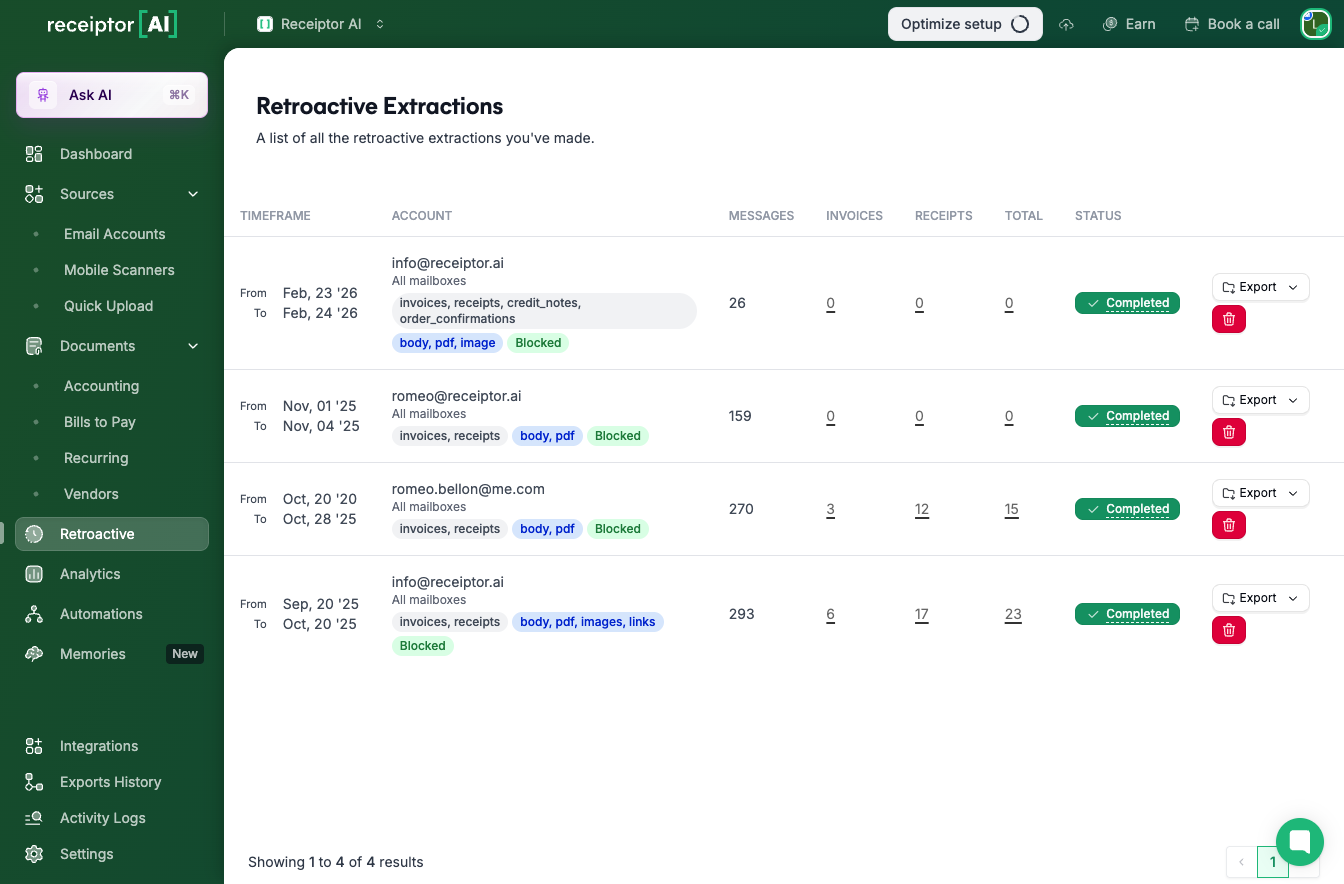
Click See All Extractions at the bottom of the Recent extractions panel to open the full Extractions History page. Here you can:
See every extraction ever run on this workspace with its full details.
Delete extractions you no longer need.
Export all documents from a specific extraction directly as CSV or ZIP (individual PDFs).
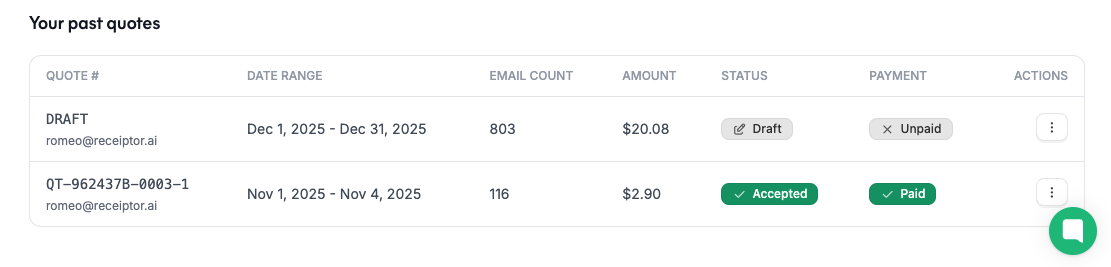
Scroll to the bottom of the Retroactive section to find Your Past Quotes. Click the Actions button (three dots) on any quote to:
View: review the quote and pay it if you haven't yet.
Edit: adjust the scope before paying.
Delete: remove a quote you no longer need.
All extracted documents will appear in your Documents section. You can then export the extracted data in various formats (such as CSV or PDF) or directly push it through Xero, QuickBooks, Google Drive, or Dropbox.
Retroactive Extraction is a great way to catch up on your backlog, but if you want to stay on top of new documents without running manual extractions, you can start continuous monitoring. Once enabled, Receiptor AI automatically scans every new email as it arrives, categorizes your documents, and keeps your workflow up to date with no action required.
Q: How is the extraction priced?
A: Pricing is based on the volume of emails scanned, not the number of documents extracted. When you request a quote, Receiptor AI counts the emails in your selected date range and scope, then calculates the price. You see the exact cost before paying anything.
Q: How long does an extraction take?
A: It depends on the volume. Quotes are generated in a few seconds to a few minutes. The extraction itself runs in the background, and you can track its progress in the Recent extractions panel.
Q: Is retroactive extraction free?
A: Your first workspace includes one free extraction from the last month. Beyond that, extractions are paid based on email volume. Additional workspaces do not include a free extraction.
Q: A document I know exists is not in the results. Why?
A: Open the extraction dropdown to check how many emails were analyzed. Then go to Activity Logs to see exactly what happened to specific emails: whether they were scanned, skipped, or filtered out by your settings.
Still have questions? Reach out via the in-app chat or at [email protected].
