Once Receiptor AI has extracted your documents, it will read them and understand their context to reliably extract and structure all key data regardless of layout, language, or currency. The extracted data is clean, standardized, and ready for export or syncing with your accounting software (Xero, QuickBooks, or Expensify).
Receiptor AI automatically identifies and structures the following data fields for every processed document:
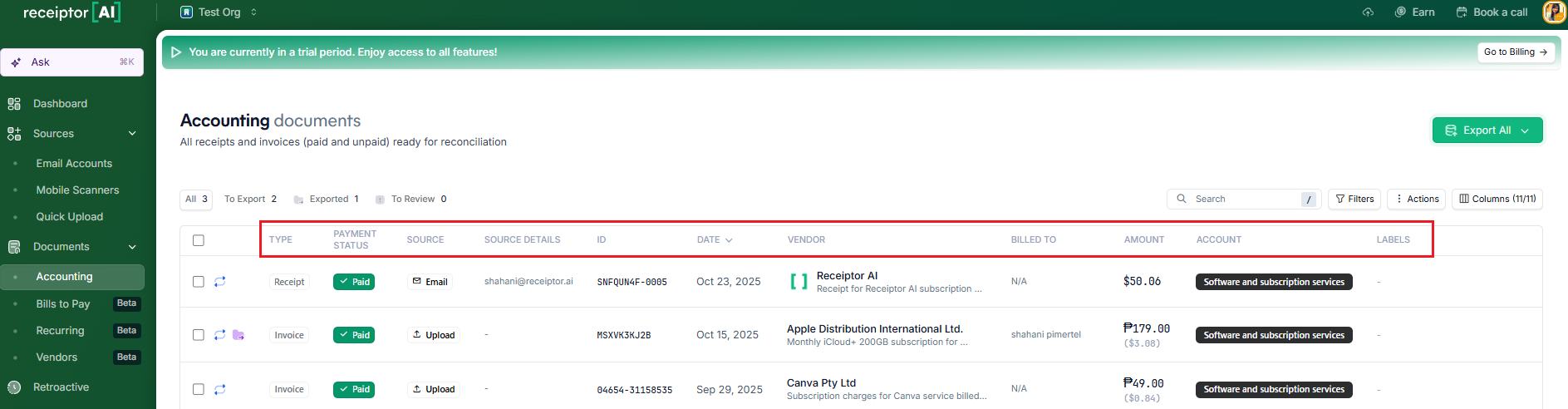
Type: Specifies the classification of the document, such as receipt, invoice, or credit note.
Payment Status: Indicates the transaction's payment status: paid, unpaid, or partially paid.
Source: Identifies the channel through which the document was received, such as email, mobile, or manual upload.
Document ID: The invoice/receipts number, reference, or ID.
Date: Represents the transaction date or the issue date of the document.
Vendor: The merchant, supplier, or service provider associated with the transaction.
Billed To: Denotes the individual or business entity to whom the document is addressed.
Amount: Reflects the total transaction value. Receiptor AI also extracts and itemizes key financial components, including subtotal, tax amount, tax type (e.g., VAT or sales tax), and applicable tax percentage, where available.
Account: Specifies the accounting category or ledger code to which the transaction is assigned.
Labels: Custom tags applied by the user to aid in classification, search, and workflow organization.
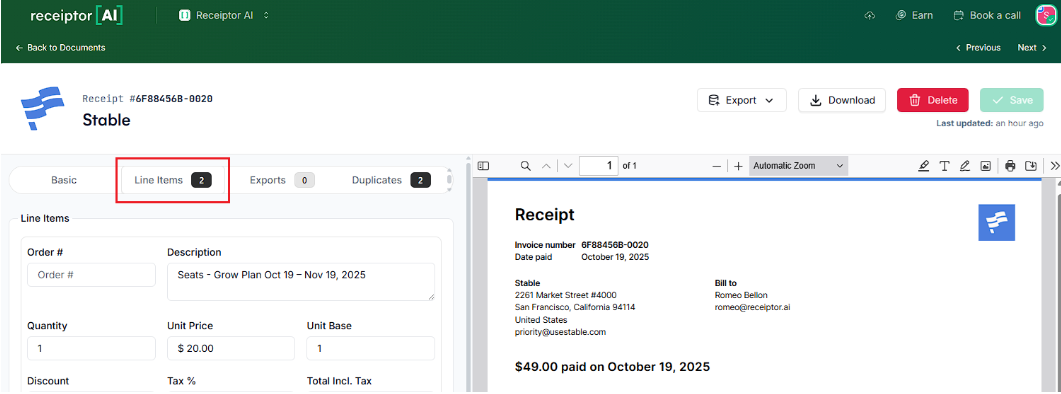
Line Items: For documents with line items, Receiptor AI extracts its data, including item descriptions, quantities, unit prices, and associated tax per item.
Clicking on any vendor name in the table opens the full document view, where you can review and manually edit all extracted fields.
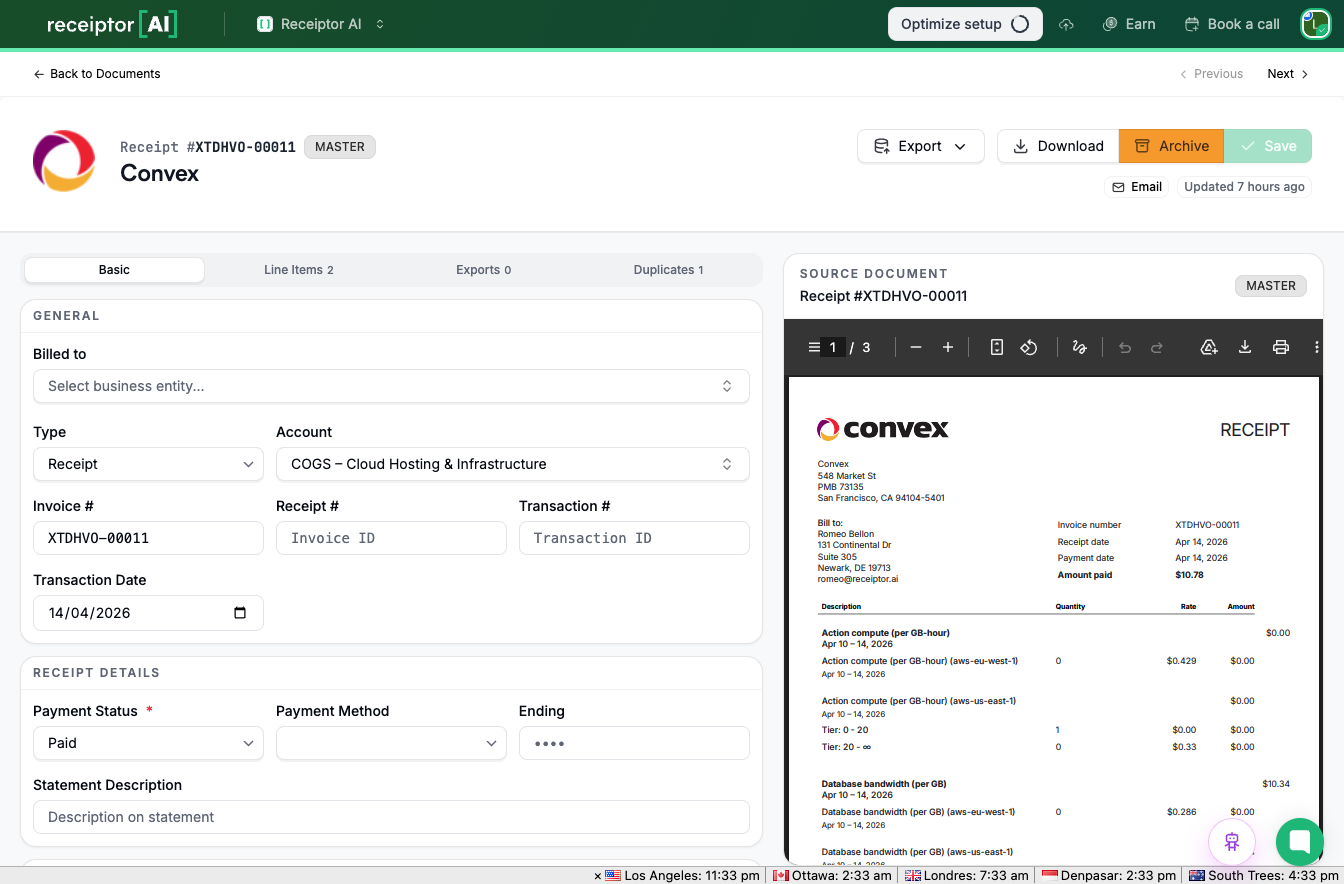
In addition to the fields visible in the table, you will also see:
Source Details: The specific inbox or email address the document was received from.
Payment Method: How the payment was made (e.g., credit card, bank transfer).
Last 4 Digits: The last 4 digits of the card used, when present on the document.
Merchant Address: The full address of the vendor or merchant.
Merchant Tax ID: The vendor's VAT number or tax registration number.
Merchant Website: The merchant's website, when present.
Due Date: The payment due date, for invoices where applicable.
Discount: Any discount applied to the transaction.
Amount Due / Amount Paid: The breakdown between what was due and what was actually paid.
Summary: An AI-generated note summarizing the document.
The document view also includes several tabs to access additional information:
Line Items: A detailed breakdown of each item on the document, including descriptions, quantities, unit prices, and per-item tax. All fields are editable.
Duplicates: If Receiptor AI has identified this document as a potential duplicate of another, you will see the matched documents here and can choose which one to keep as the master.
Exports: A full history of every time this document has been exported, including the destination, date, and status of each export.
Q: Does Receiptor AI support multiple currencies?
A: Yes. The system extracts the original currency and automatically converts it to your base currency when syncing with accounting platforms.
Q: What file formats does Receiptor AI process?
A: Receiptor AI processes email body text, PDF attachments, and image files (.jpg, .png, .heic).
Q: What if a field is missing or looks incorrect?
A: All fields are editable in the document detail view. You can manually correct any extracted value. If a field is flagged by the AI as uncertain or missing, the document will appear in the To Review tab.
If you notice that a specific document or data field is missing after processing, please contact support at [email protected] and include the document ID for faster troubleshooting.
