Export your documents from Receiptor AI as a single merged PDF or as a ZIP archive of individual files, organized into folders that match your filing structure.
PDF merges all selected documents into one consolidated file. Use this when you need to share or archive a batch of documents as a single attachment.
ZIP packages each document as an individual PDF inside a folder structure you define. Use this when you need files organized by merchant, date, category, or entity, ready to drop into your filing system or send to your accountant.
Go to the Documents section.
Select the documents you want to export using the checkboxes. Use the filters or tabs (e.g., To Export, Last Extracted) to narrow down your selection first if needed.
Click Export.
Choose PDF or ZIP as the format.
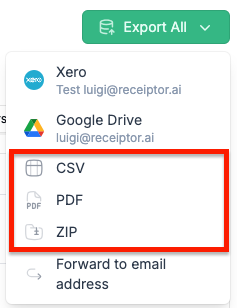
For PDF, the export starts immediately, and a consolidated file is generated.
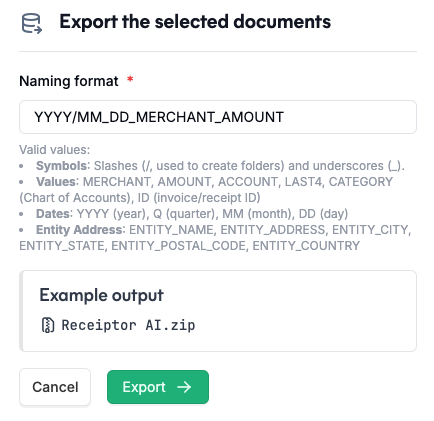
For ZIP, you'll be asked to configure your folder and file naming structure before the export starts (see below).
When exporting as ZIP, you can define exactly how the files are organized inside the archive, using slashes to create sub-folders, underscores to name your files and the different fields that have been extracted (merchant name, date, etc.)
Available tokens:
Document data: MERCHANT, AMOUNT, ACCOUNT, LAST4, CATEGORY, ID
Dates: YYYY (year), Q (quarter), MM (month), DD (day)
Entity data (if Business Entities is enabled): ENTITY_NAME, ENTITY_ADDRESS, ENTITY_CITY, ENTITY_STATE, ENTITY_POSTAL_CODE, ENTITY_COUNTRY
Example:
YYYY/MM/MERCHANT creates a folder per year, a subfolder per month, and names each file after the merchant.
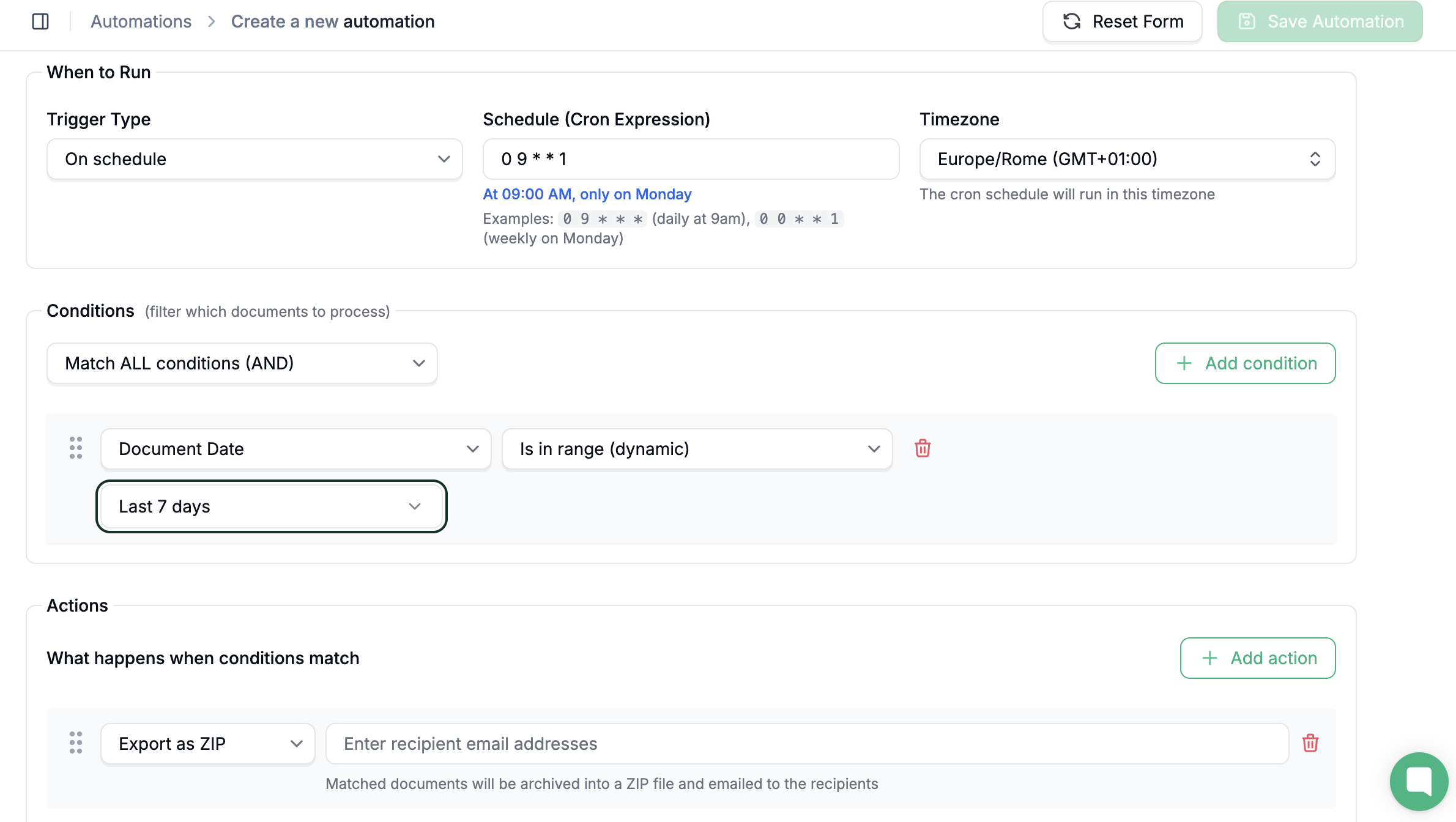
You can schedule a PDF/ZIP export to run automatically on any cadence (daily, weekly, monthly, or any custom interval) using a scheduled automation rule.
Go to Automations.
Click Create Automation.
In Basic Information, give the rule a name (e.g., "Weekly PDF export to accountant").
Set the Trigger to On Schedule and enter your cron expression and timezone. For example, every Monday at 8am is 0 8 * * 1.
Add Conditions if you want to filter which documents are included. For example, you can limit the export to a specific document type, a date range, a merchant, or a payment status.
In Actions, add Export as PDF or ZIP and select the template to use.
Save the rule.
From this point, Receiptor AI will automatically export the matching documents as a PDF on your chosen schedule.
Q: Is there a limit on how many documents I can export at once?
A: No hard limit. Select as many as you need. Larger exports may take a moment to process.
Q: Can I export a filtered view, like only receipts from a specific month?
A: Yes. Apply your filters first, then select all filtered results using the checkbox at the top of the list, and click Export.
Q: My export failed. What should I do?
A: Go to Exports in the left sidebar and check the status of the job. If it shows as failed, click the three-dot menu to Copy Job ID and share it with support via live chat or at [email protected].
Talk to us via the live chat in the bottom-right corner of your dashboard, or email [email protected].
