The AI flags a document when it detects one of the following:
Math inconsistency: the line item totals, tax amount, discount, or subtotal do not add up to the stated total amount.
Missing mandatory field: a field the AI considers essential for this document type is absent or unreadable.
Low-confidence extraction: the AI extracted a value but is uncertain about its accuracy.
Flags are not errors in the product. They are the AI signalling that a document needs a human review before it is trusted.

Click the To Review tab in the Documents section. This view shows all documents currently carrying a red alert flag.
You can also spot flagged documents in any other tab by looking for the 🟥 icon on the left side of the row. Hover over the icon to see a brief description of what triggered the flag.
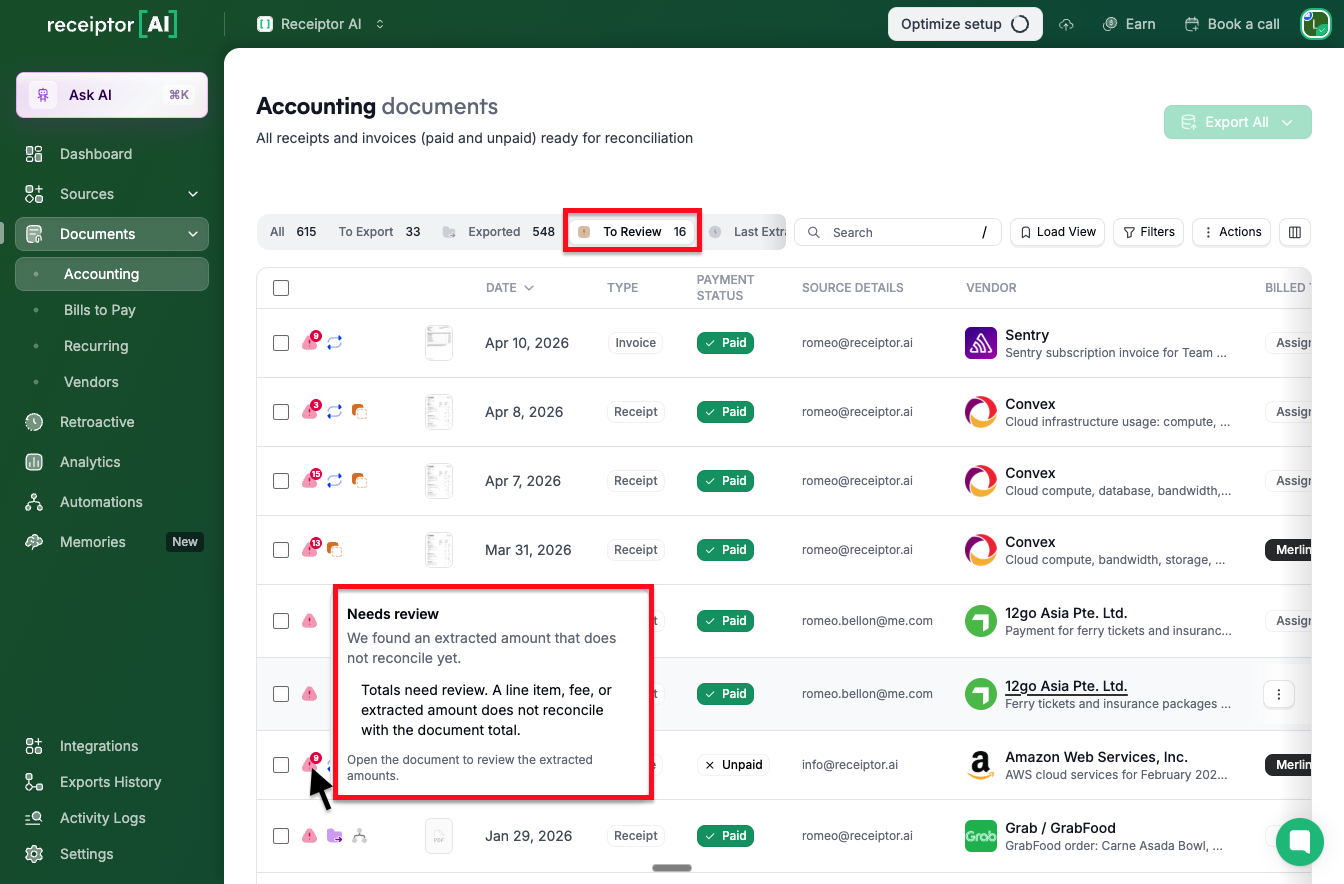
Click the vendor name on a flagged document to open the detail view.
Review the extracted fields on the left panel. Fields the AI is uncertain about may be highlighted.
Check the Line Items tab if the flag relates to a math inconsistency. Compare the individual line amounts, tax, and discount against the document total.
Correct any field that is wrong or missing by clicking on it and entering the right value.
Click Save.
Once you save a correction, the flag is automatically removed. You can also dismiss a flag manually without editing (see below), if you have reviewed the document and confirmed the data is already correct.
After reviewing a document and confirming the data is correct, or deciding the flag can be ignored, dismiss it to remove the document from the To Review tab.
Single document: open the document, then click the dismiss option on the error.

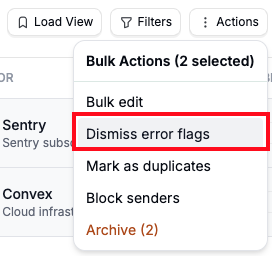
Multiple documents: select them using the checkboxes in the table, click Actions, then choose Bulk Dismiss Error Flags.
Q: Does dismissing a flag change the extracted data?
A: No. Dismissing a flag only removes the alert indicator. It does not modify any extracted field. If the data was wrong, correct it first before dismissing.
Q: Will the flag come back after I dismiss it?
A: No. Once dismissed, the flag will not reappear unless the document is reprocessed and the AI detects a new issue.
Q: A document looks correct to me, but it is still flagged. What should I do?
A: The AI applies strict rules around totals and mandatory fields. If you have verified the data against the original document and everything matches, you can safely dismiss the flag. Some documents, particularly handwritten receipts or those with non-standard layouts, may trigger flags even when the extraction is accurate.
Q: Can I prevent certain document types from being flagged?
A: Not currently. The verification layer runs on all processed documents. You can use the Bulk Dismiss action to clear flags in bulk if needed.
Still have questions? Reach out via the in-app chat or at [email protected].
