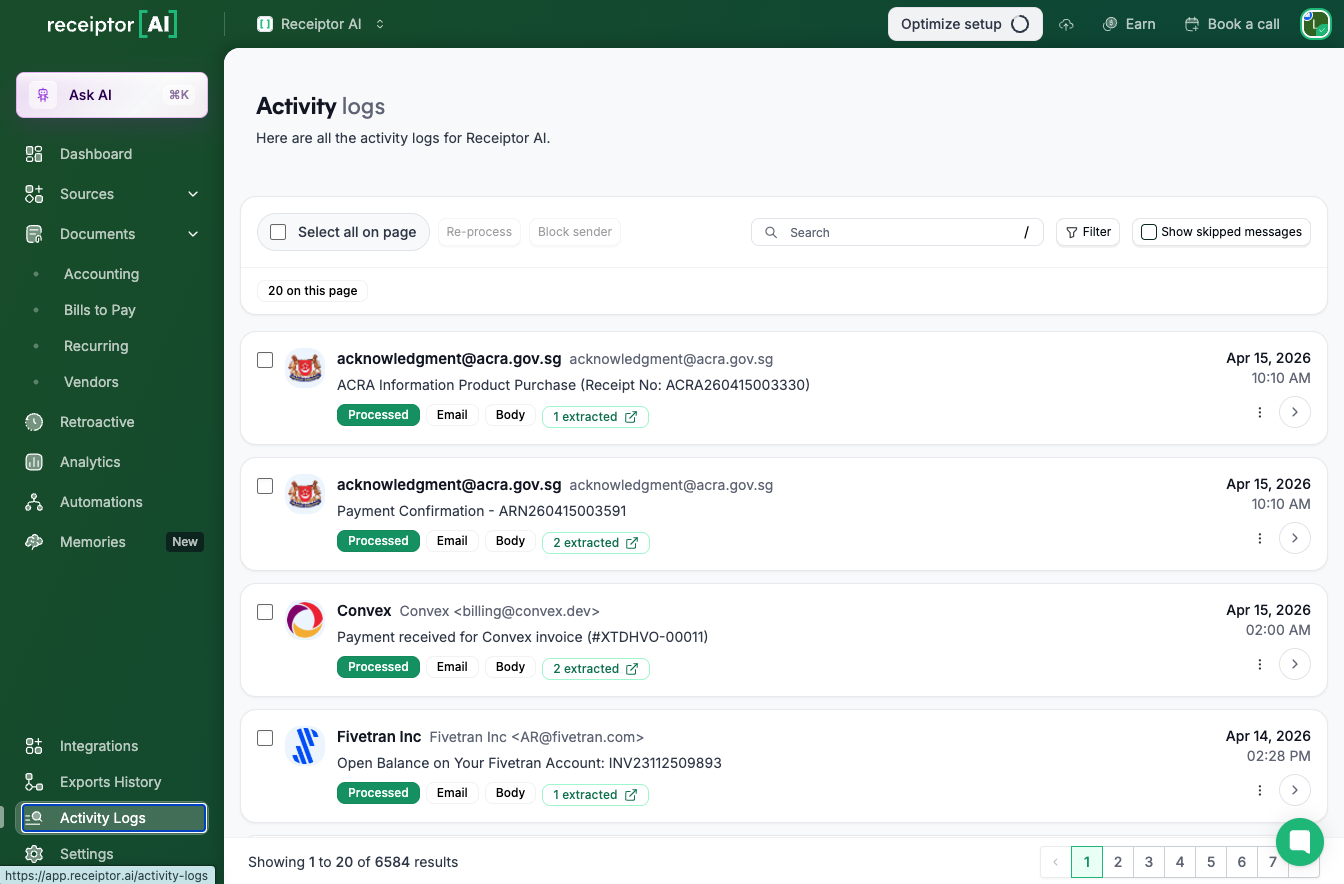
Each row in Activity Logs represents one analyzed message and shows:
Subject: the email subject line, WhatsApp message reference, or upload filename.
Sender: the email address or phone number the message came from.
Date: when the message was received or uploaded.
Type: Email, WhatsApp, or Upload.
Status: Processed, Skipped, or Failed.
Documents extracted: a clickable pill showing how many documents were pulled from this message. Click it to jump directly to those documents in the Documents section.
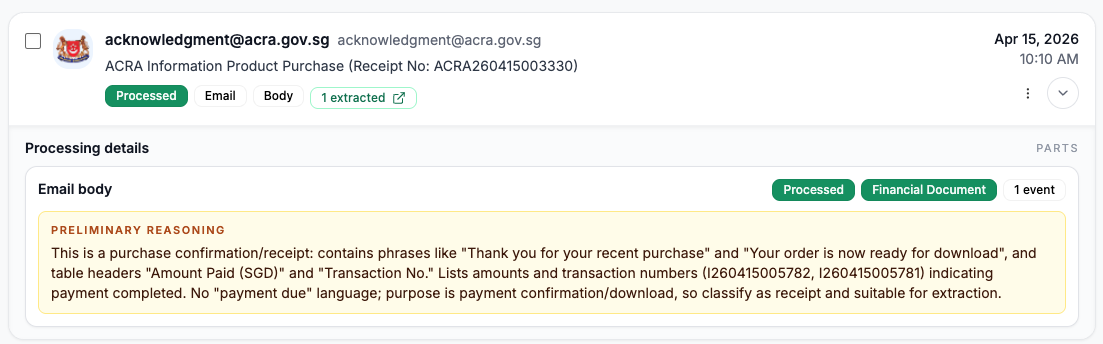
Click on any row to expand a processing details dropdown. This explains exactly what happened: why a document was or was not extracted, what the AI found, and the specific reason for skipped or failed messages.
This is the fastest way to answer "why didn't this receipt come through?" without contacting support.
Search bar: search by email subject, sender, or filename to find a specific message quickly.
Filter by type: narrow the list to Email, WhatsApp, or Upload only.
Show skipped messages: by default, skipped messages may be hidden. Toggle this on to include them in the list and investigate why certain emails were not processed.
Click the three-dot button on any row to access per-message actions:
View email: opens the original email in your inbox so you can see the full message and attachments (you need to have access to the inbox).
Re-process: sends the message through the extraction pipeline again. Use this after adjusting your source settings (document types, sender filters, email parts) to see if the result changes.
Copy message ID: copies a unique identifier for this message to your clipboard, useful when reporting an issue to support.
Select multiple messages using the checkboxes at the top of the list, then choose:
Re-process: re-run extraction on all selected messages at once.
Block sender: add the sender to your blocked senders list so future messages from that address are ignored by Receiptor AI.
Q: A receipt I know exists is not in my Documents section. Where do I start?
A: Go to Activity Logs and search for the email subject or sender. Open the processing details dropdown on that row to see exactly what happened. Common reasons include: the email was skipped because the sender was on your blocked list, the document type was not included in your source settings, or the message was analyzed before you enabled monitoring.
Q: What is the difference between Skipped and Failed?
A: Skipped means the AI analyzed the message and determined it contained no relevant financial document, such as a newsletter or an automatic reply. Failed means something went wrong during processing. Failed messages should be re-processed or reported to support using Copy Message ID.
Q: Will re-processing a message create duplicate documents?
A: Receiptor AI's duplicate detection will flag any document that appears to match one already in your workspace. If you are re-processing intentionally, review the Duplicates tab afterward and resolve any matches.
Q: How far back do Activity Logs go?
A: Activity Logs show all messages analyzed within the current workspace, including those from retroactive extractions. There is no fixed cut-off.
Still have questions? Reach out via the in-app chat or at [email protected]. When reporting a processing issue, use Copy Message ID and include the ID in your message. It helps support locate the exact event quickly.
