Navigate to Emails
Go to the left sidebar
Click 'Collect' > 'Emails'
Click the 'Add an account' button
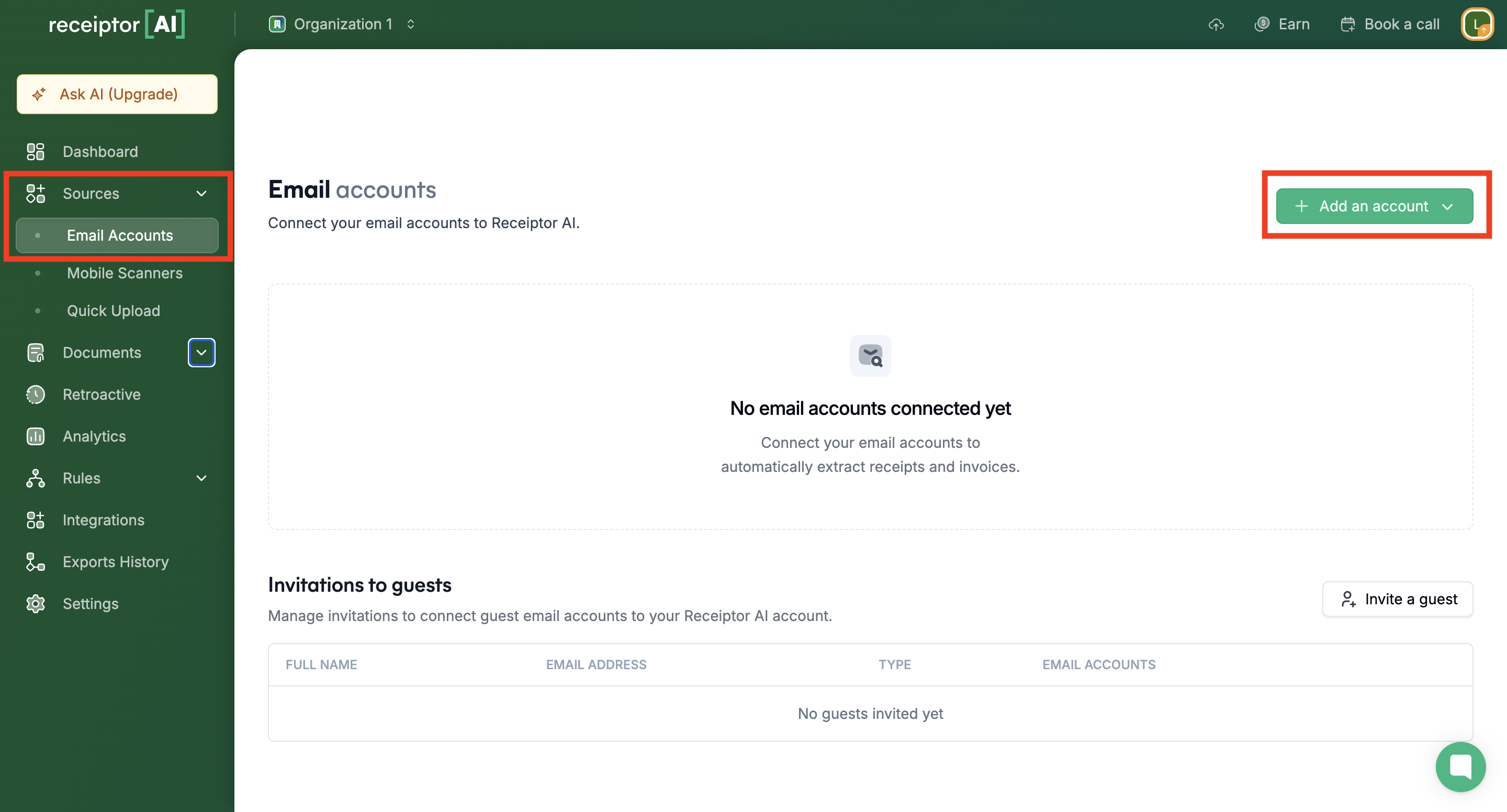
Choose your connection method (Google, Microsoft, IMAP)
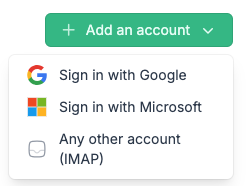
You'll be redirected to your email provider's login page. Sign in and authorize Receiptor AI to access your inbox. Receiptor AI requires read-only access to scan receipts and invoices. We never send emails or modify your messages.
Return to your dashboard to confirm the connection was successful. You can now activate Continuous Monitoring or run a Retroactive Extraction.
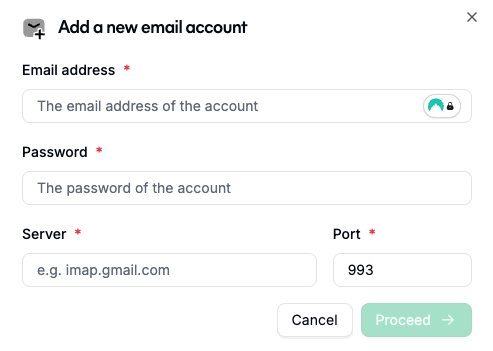
If you need to connect an email provider via IMAP (for example, Yahoo Mail), choose IMAP as your connection method and complete the fields as follows:
Email address: Enter your full Yahoo Mail address.
Password: Depending on the email service provider, it could be your account password or an app-specific password (see your email provider's instructions for creating one).
Server: You can find it via your email provider's instructions (e.g., imap.mail.yahoo.com)
Port: Leave the default port as 993 (the standard secure IMAP port).
Click Proceed to finalize the connection.
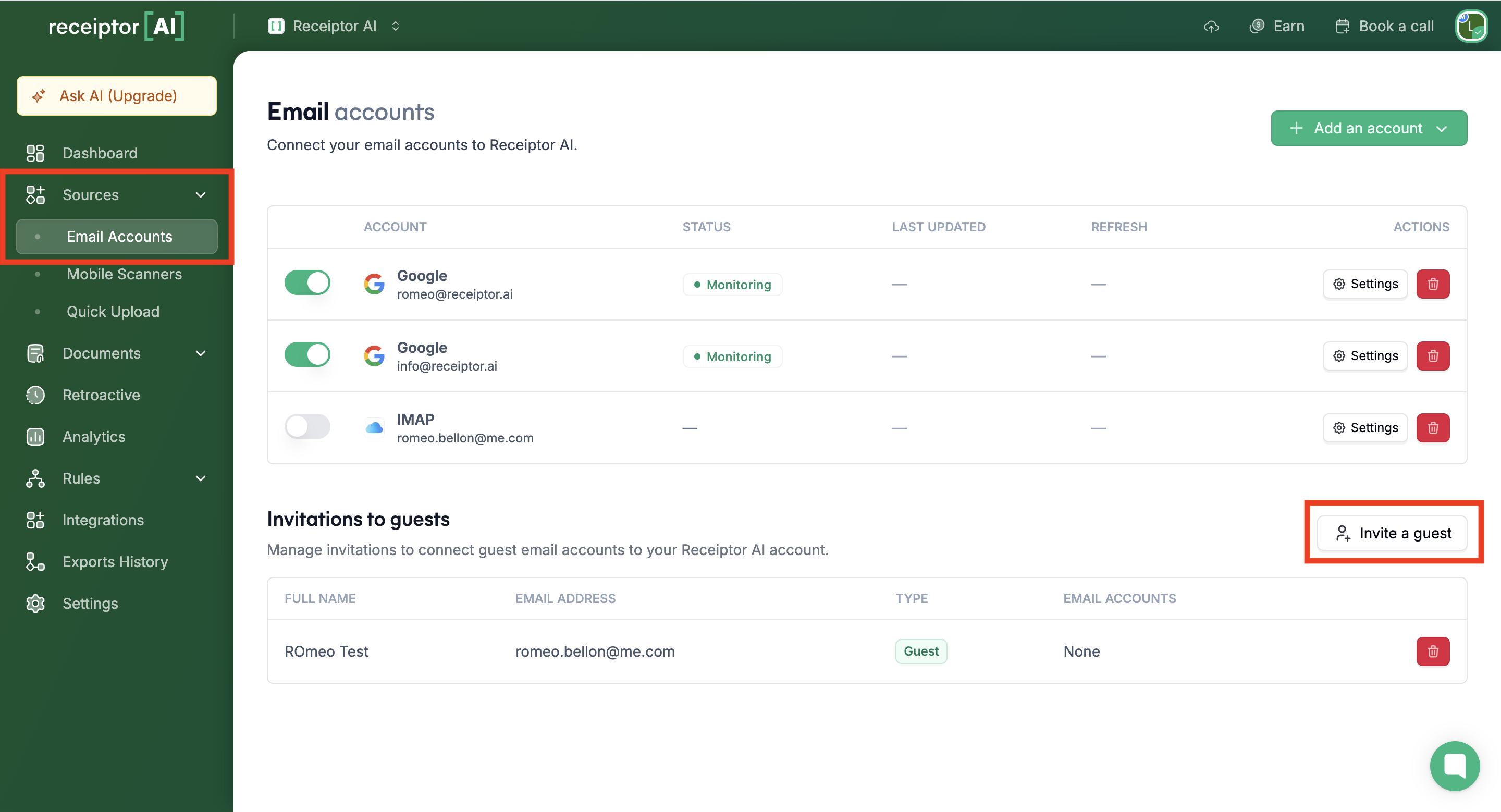
You can decide to add someone's email inbox to your Organization by using the 'Invite a Guest' button. The guest's email inbox will be connected, but they won't need to create an account or have access to the Organization.
Navigate to the 'Collect' > 'Emails' section.
Select the 'Invite a guest' option to begin the process.
Add your guest's email address. He'll receive an email asking him to grant Receiptor AI read-only access to his inbox.
Q: How frequently does Receiptor AI check my inbox for new receipts/invoices?
A: For Gmail and Outlook connections, Receiptor AI monitors your inbox continuously in near real time. For IMAP connections, it scans for new messages approximately once per hour.
Q: Can I connect multiple email accounts?
A: Yes. You can add multiple Gmail, Outlook or IMAP inboxes under Collect → Emails, and each can be configured separately.
Q: Will Receiptor AI send or modify emails in my inbox?
A: No. Receiptor AI has read‑only access; it only scans messages containing receipts and invoices and never sends or changes any emails.
Q: What if my email account doesn't seem to connect?
A: Ensure you completed the provider's login/authorization flow and enabled continuous monitoring. If the problem persists, remove and re‑add the account or contact support.
Q: Can I invite someone else to connect their inbox?
A: Yes. Use the Invite a Guest option in the Emails section. The guest will grant read‑only access to their inbox without needing to join your workspace.
If you need help connecting your email account, contact our support team at [email protected] or via live chat.
